The Riftbound card scanner, step by step
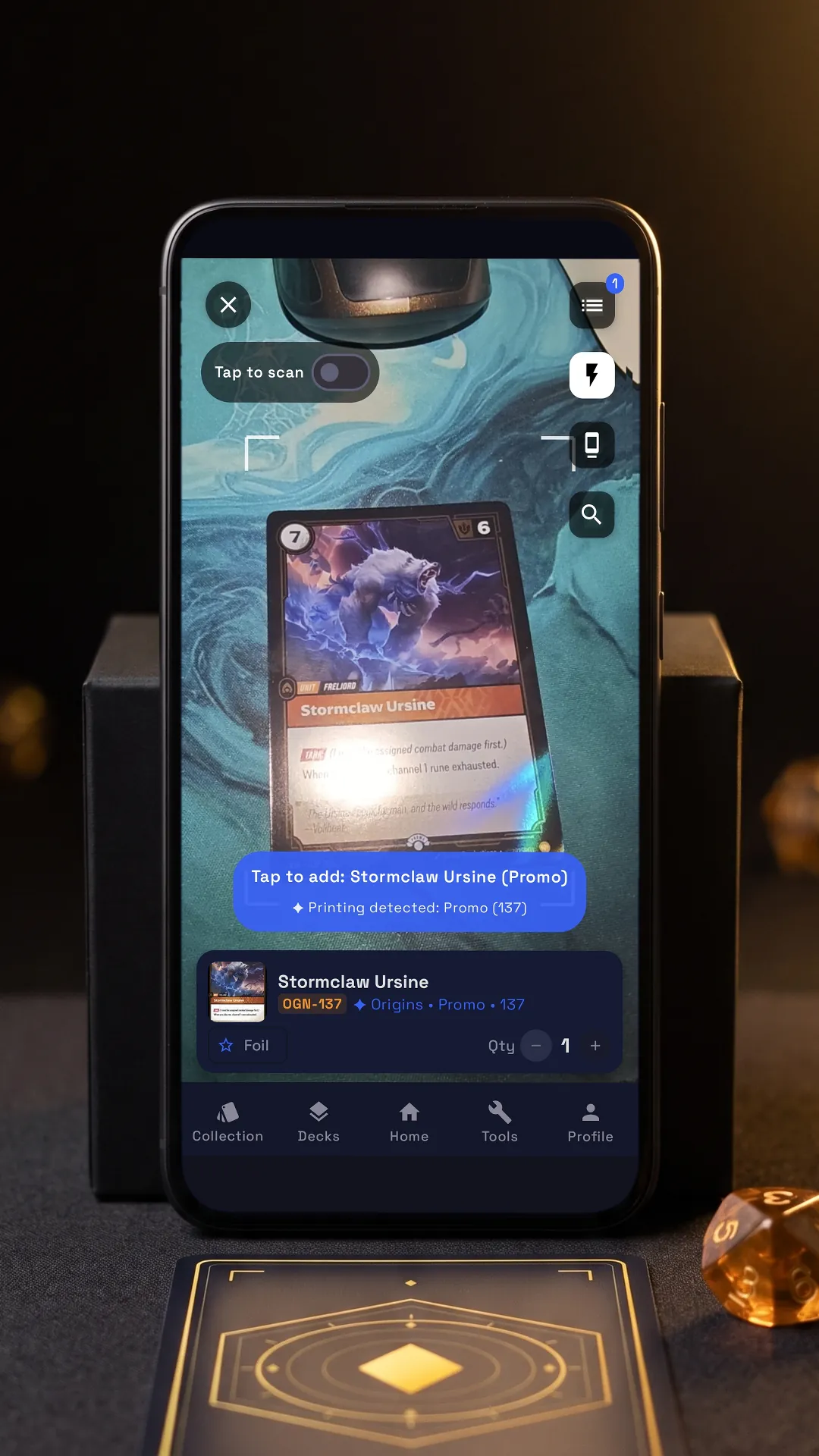

Tap the lit spot on the phone to go on.
RiftSeeker’s scanner recognizes a Riftbound card from the camera, down to its printing, and adds it to your collection. Beside it are its steps, in the app’s own words, on its real screen: tap the lit spot on the phone, or use Next.
Step by step
-
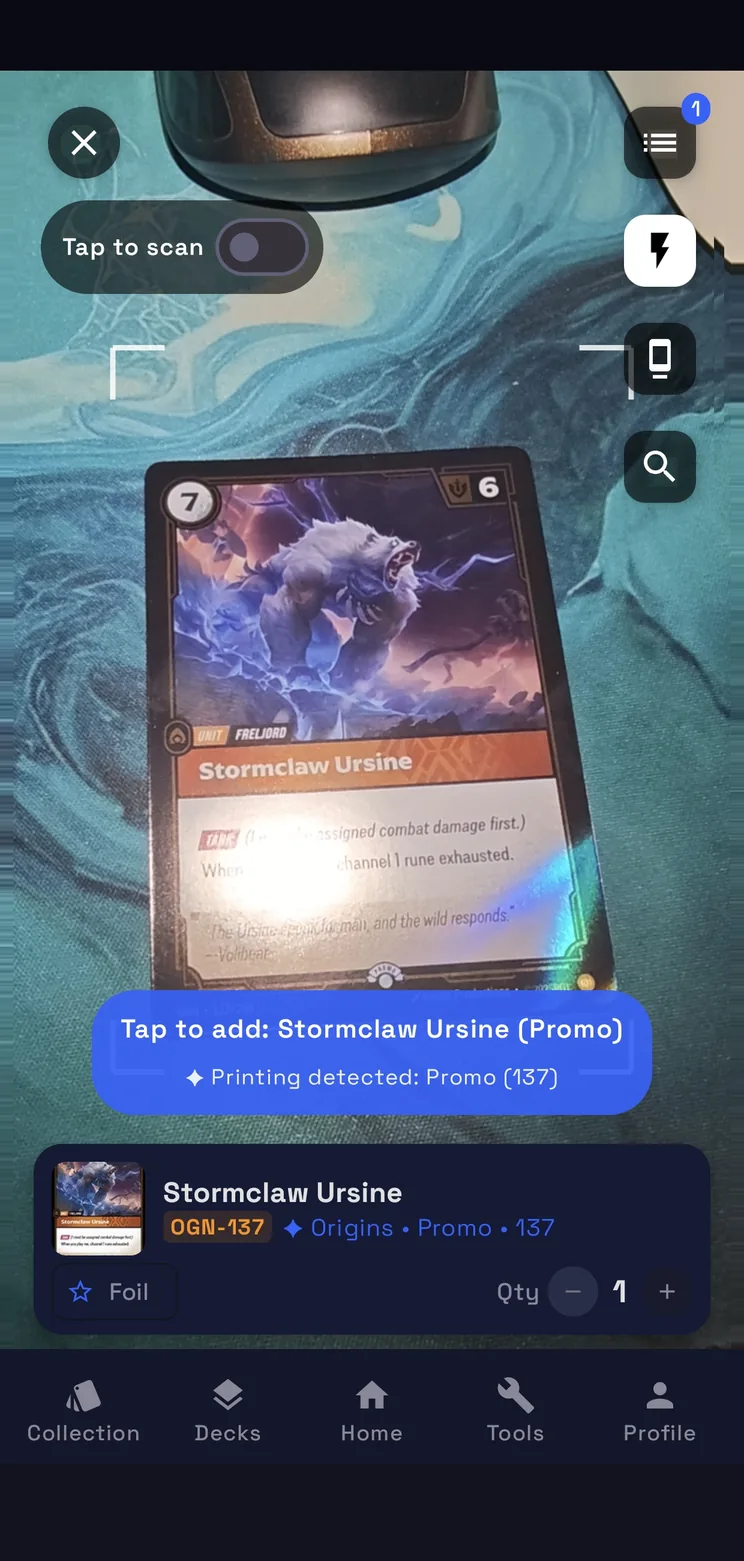
Frame the card
Frame a card inside the guide and it’s recognized automatically, alternate arts and special printings too.
-
Tap or Turbo
In Tap mode you confirm each card; switch to Turbo for continuous scanning.
-
Tap to add
The banner names the card and the printing detected: tap it and the card joins the session.
-
Foil and quantity
Under the banner, the card with its code and set: mark it Foil and set the copies with − and +.
-
Review and save
The list button counts the session: review every card there, then Save to Collection, Market or Both.
How the scanner works
Frame and confirm
The camera button of the Collection opens the scanner. Frame a card inside the guide and it is recognized automatically, alternate arts and special printings included. In Tap mode you confirm each card by tapping the banner, which names the card and the printing detected; switch to Turbo for continuous scanning.
Foil, quantity and the session
Under the banner sits the card you added, with its code and set: mark it Foil and set how many copies with − and +. The list button counts the cards of the session: review them there before saving, then Save to Collection, Market or Both. Leave with cards not saved yet and the app asks whether to save or discard them.
Flash, search and the stand
The buttons on the right switch on the flash and open the manual search, for a card you would rather look up. On Android, Phone stand is for scanning with the phone fixed on a stand: you pick the lens and the zoom until the card fills the guide, and the app remembers them.
Android and iPhone
On Android the scanner runs on the phone, even without a connection, and tells Alt Art, Signed and promo printings apart. On iPhone, in the beta, it recognizes cards and promos too; the stand mode is on Android only.
Questions
- Is the scanner free?
- Yes. It is part of RiftSeeker, which is free on Google Play and in beta on iPhone. Premium is optional: it removes the ads and the daily limit on scans.
- Does it tell printings apart?
- Yes. Alternate arts and special printings are detected on their own, and the banner says which printing it found, as in “Printing detected: Promo (137)”.
- Does it work without a connection?
- On Android, yes: the scanner runs on the phone, even offline.
- Where do the scanned cards go?
- Into the session first: review them from the list button, then Save to Collection, Market or Both. Market is the list of the cards you sell: saving there leaves your collection as it is.