The Riftbound deck builder, step by step
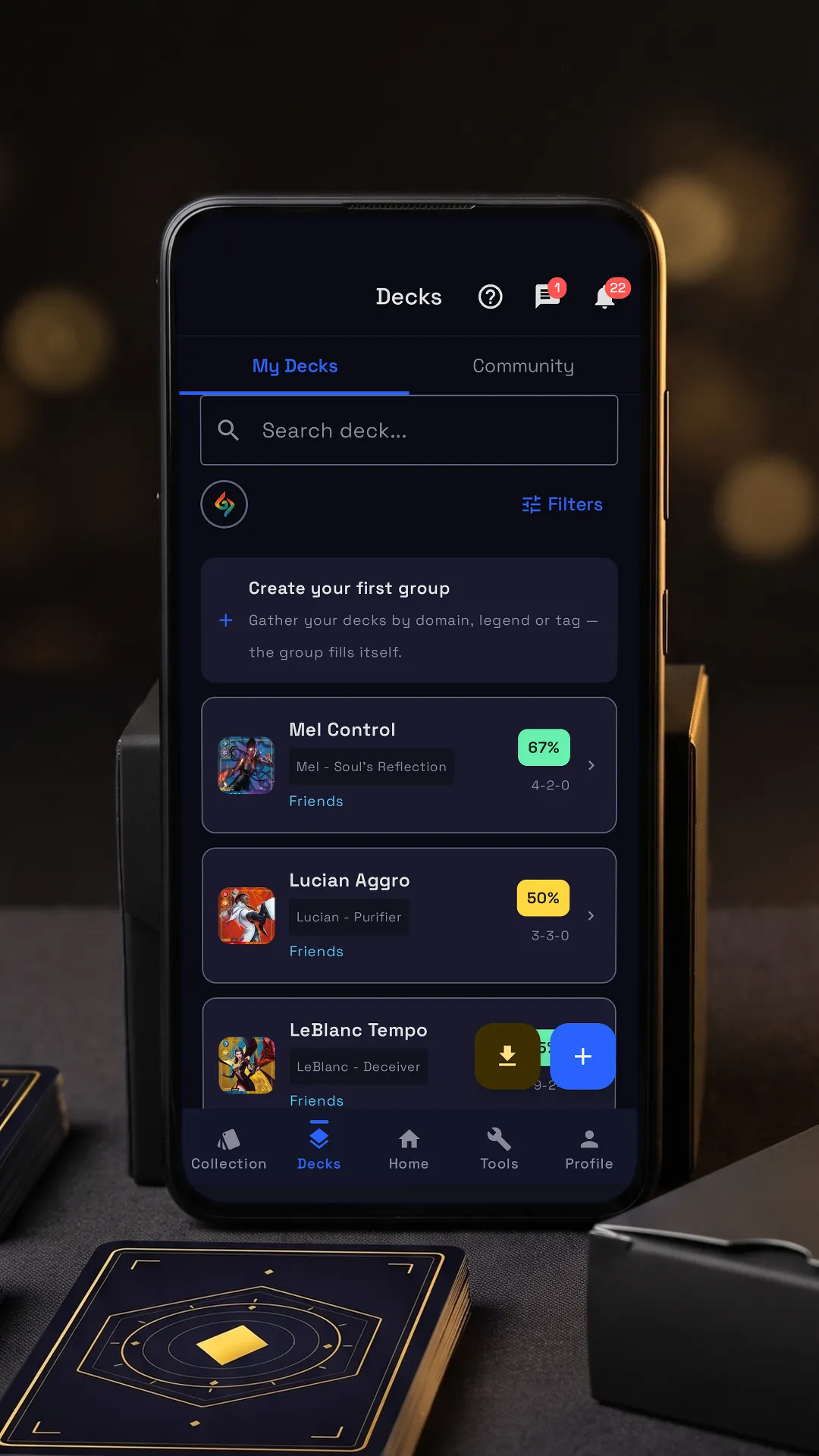

Tap the lit spot on the phone to go on.
RiftSeeker’s deck builder checks a Riftbound deck against the rules while you build it, and keeps every deck in one list with its win rate. Beside it is the app’s own tutorial, on its real screens: tap the lit spot on the phone, or use Next.
Step by step
-
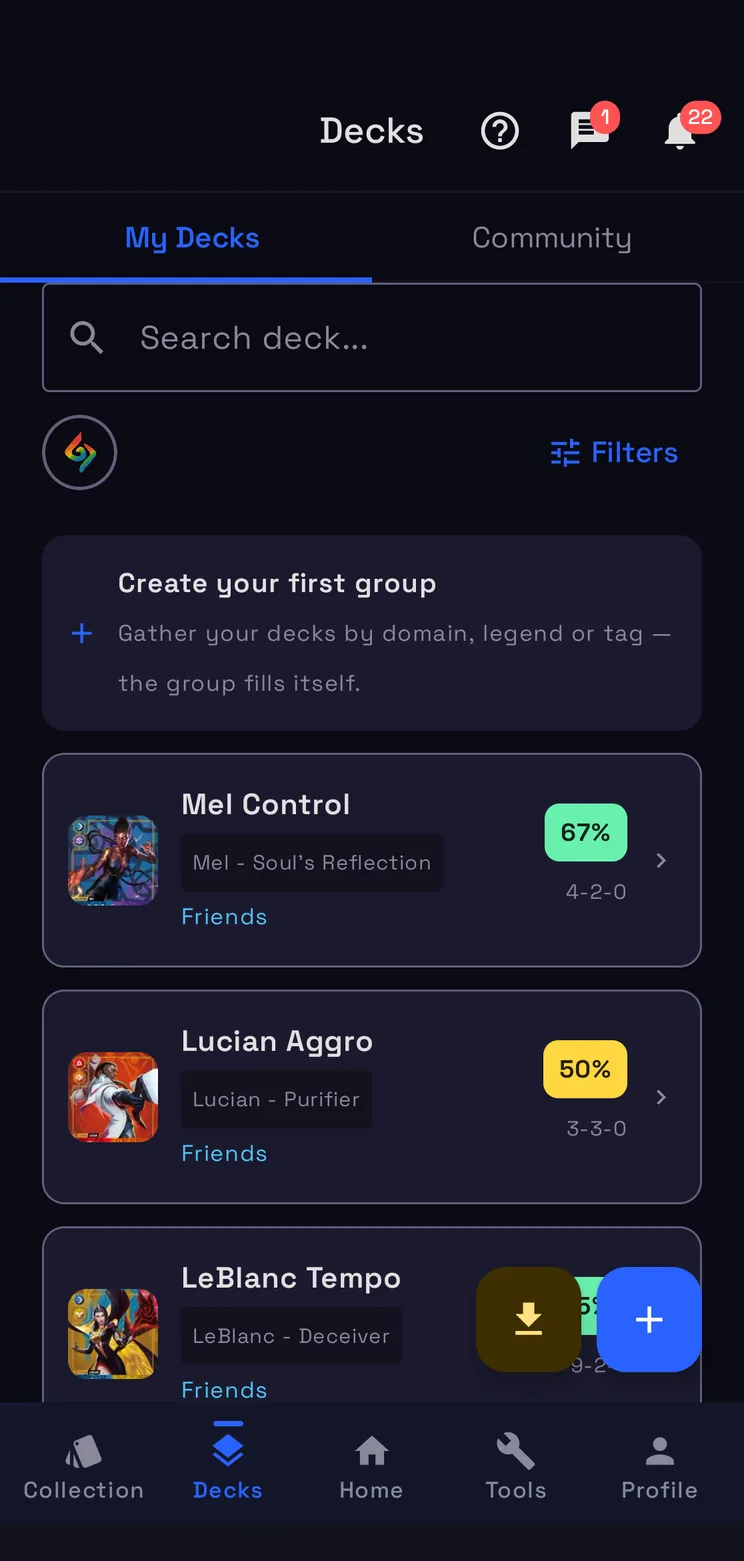
New deck
Give it a name, then the guided setup takes you through Legend, champion, battlefields and runes.
-
Import
Paste a deck code or a text list and the deck is ready.
-
Groups
Gather decks in manual groups, or in smart groups by domain, Legend or tag.
-
Your decks
Press and hold for its menu; a red dot means not legal, the pill is the win rate.
-
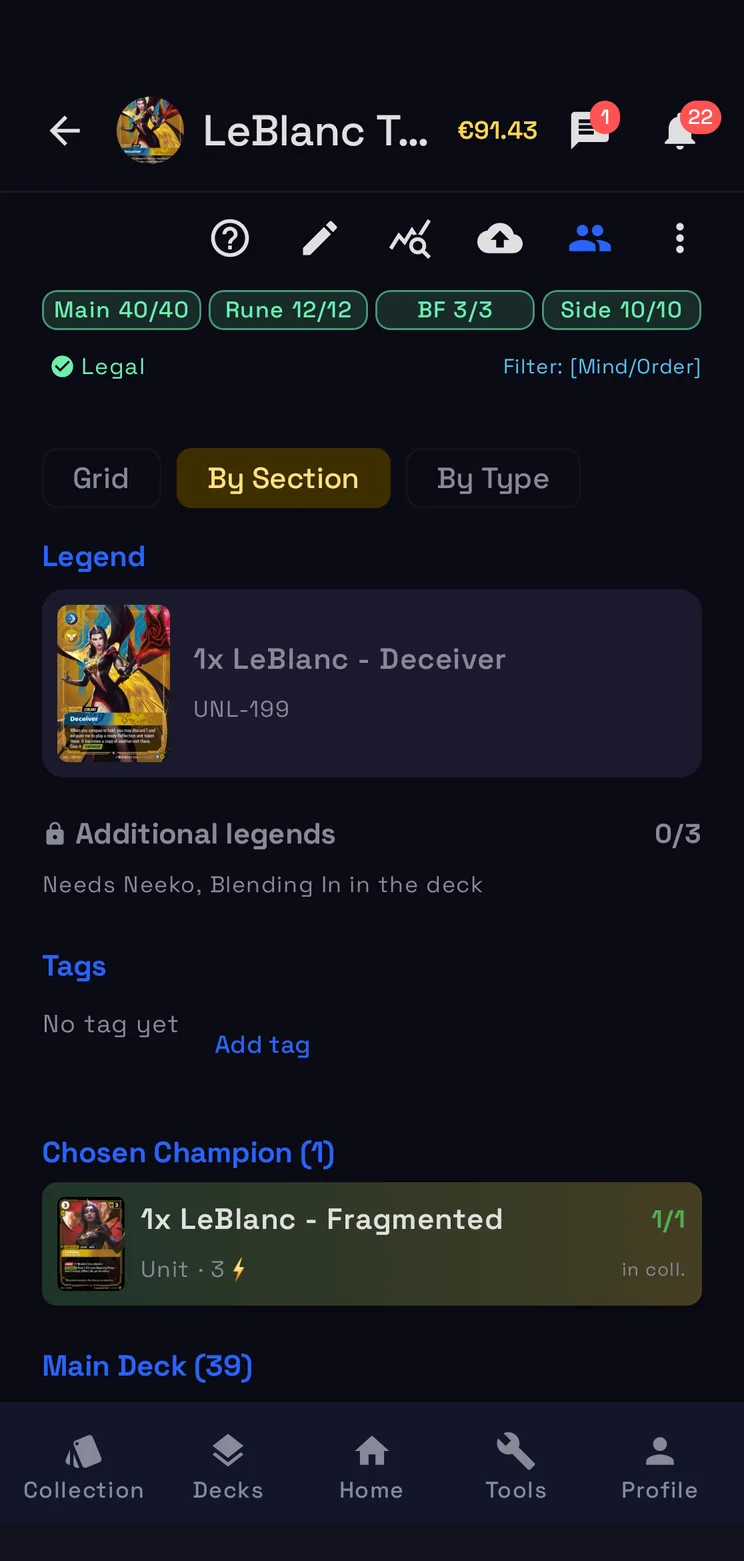
Edit the deck
The pencil opens the setup: Legend, champion, battlefields, runes and the cards to add.
-
The sections
Main, runes, battlefields and sideboard: green when complete, yellow when short, red when over.
-
Legality
Tap the badge to see what keeps the deck from being legal in its format.
-
The menu
From here you export the deck code, share a link, add notes and archetype, save to the cloud.
How the deck builder works
A new deck, or an imported one
+ creates a deck: give it a name and the guided setup takes you through the Legend, the champion, the battlefields and the runes. The Legend sets the deck’s domains, and the format, Standard, Limited or 2v2, sets the counters and the legality check. The button beside it imports a deck instead: paste a deck code or a text list, the tournament layout included, and the deck is ready.
Groups and the list
Gather your decks in manual groups, a name, an icon and the decks you pick, or in smart groups, a saved filter by domain, Legend or tag that keeps itself up to date. A deck can sit in more than one group. Each row shows the deck’s Legend and, once you have logged matches with it, its win rate and its record; press and hold a row for its menu.
Sections and legality
Above the cards sit four counters, Main, Rune, BF and Side: green when the section is complete, yellow when it is short, red when it is over. Under them the badge says Legal or Not legal; tap it to see what keeps the deck from being legal in its format, from copy limits to Signature cards and banned or rotated cards. Each card shows how many copies you own, counting every printing of it.
Edit, share, export
The pencil reopens the setup, with the cards to add. The ⋮ menu exports the deck code, shares the deck with a link that imports it in one tap, adds notes and an archetype, saves the deck to the cloud and creates the registration sheet, a PDF for tournaments. Suggest a card, in the same menu and in the card search, proposes up to five cards that fit the deck, each with its reason.
Questions
- Is the deck builder free?
- Yes. It is part of RiftSeeker, which is free on Google Play and in beta on iPhone. Premium is optional: it removes the ads and the limit on decks, and adds deck groups and tags and the registration sheet.
- Which formats does it check?
- Standard, Limited and 2v2. You choose the format at the top of the deck setup, and the counters, the copy limits and the legality check follow it.
- Can I import a deck I built elsewhere?
- Yes. Paste a deck code or a text list and the deck is ready; a list that names the champion sets it as the deck’s champion.
- Can I share a deck?
- Yes. The ⋮ menu exports the deck code or shares a link: whoever opens it sees the list and imports it with one tap, no account needed.